Easy To Follow Steps
Android eSIM Installation
1. Install the eSIM
Install Using QR Code (Android)
In this step, you will add a new eSIM data plan to your phone using the QR code.
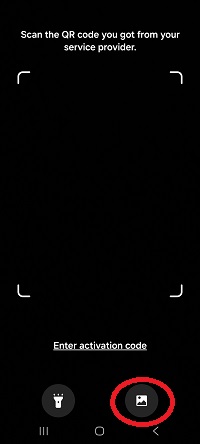
The easiest way is to display the QR code from the Global eSIMs website or by the emailed link on another device and simply point your Android device camera at it. You should see the message 'Add eSIM' displayed on your phones screen. Click this link to begin installation.
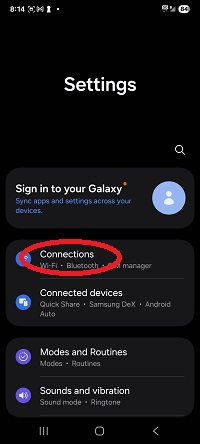
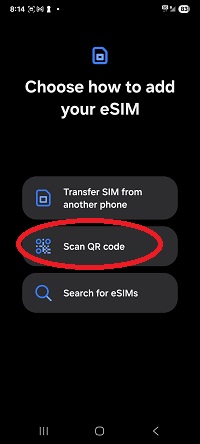
Another way is to open the Global eSIMs App or follow the emailed link and take a screenshot of the QR code. You can then go to your phone Settings > Network and Internet / Connections > SIMs / SIM Manager > Add SIM / Add eSIM > Scan QR Code. You can 'scan from photo' or 'open the gallery' option and use the screenshot of your QR code. Proceed as your phone instructs.


2. Activate the eSIM
Once installed you will be asked to Activate your eSIM. Your newly installed eSIM will be OFF by default. Click the eSIM, you can now edit the name if required. Turn on the eSIM by enabling 'Use this SIM'.
Once ON, you must also enable the Roaming option, this enables the phone to connect to the local network.
After successfully activating your eSIM, your device will begin searching for a signal immediately. In most cases, a data connection will be established immediately, and you will see 5G or 4G LTE in the signal status. This means you are connected and ready to go!
In rare cases, it may take up to 10 minutes for a data connection to be established. Please be patient, as there are many data carriers and environmental factors that can affect the activation time.
Still Need Help?
After installing and activating your eSIM you should immediately have access to the internet, if for any reason after 10 minutes your internet access is not working, please reach out to us by Live Chat (fastest), Email or Phone.
