Easy To Follow Steps
Apple iPhone eSIM Installation
Method 1 to Install the eSIM
Install Using QR Code (Apple/iOS/iPhone)
In this method, you will add a new eSIM data plan to your phone using the camera and QR code.
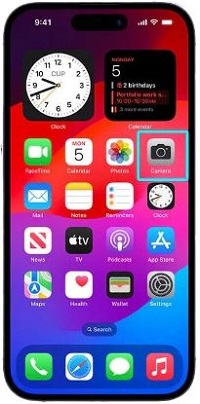
The easiest way is to display the QR code from the Global eSIMs website or by the emailed link on another device and simply point your Apple/iOS/iPhone device camera at it. You should see the button 'Mobile Plan' displayed on your phones screen. Click this link to begin installation.

Method 2 to Install the eSIM
Install Via Settings (Apple/iOS/iPhone)
In this step, you will add a new eSIM data plan to your phone using the settings page on your phone using either the QR code provided or the manual settings provided.
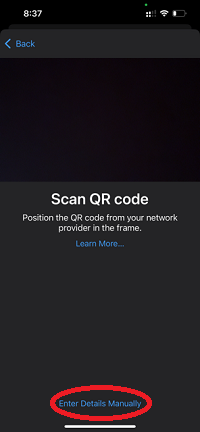
Open your phone 'Settings' page, Tap 'Mobile Service or Mobile Data or Cellular' > 'Add eSIM' > If you see 'Transfer Your Phone Number' tap 'Other Options' > 'Use QR Code' > Then scan the QR code with your phones camera.
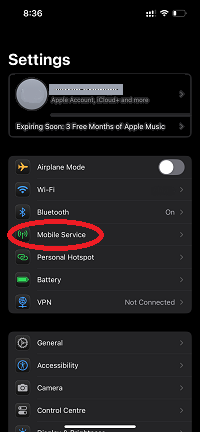
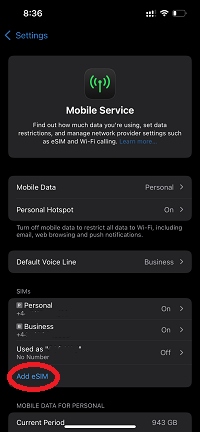

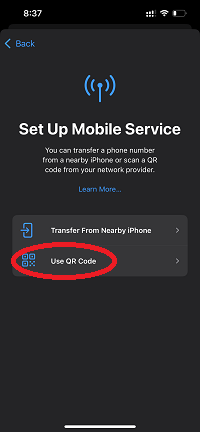

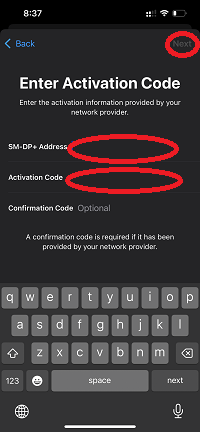
Alternatively on the 'Scan QR Code' page there is an option to enter the eSIM details manually, tap 'Enter Details Manually' and then enter the information provided.
Carefully enter the corresponding "SM-DP+Address" and "Activation Code" from the email. Please be careful not to include unnecessary characters like spaces. The click 'Next'
Method 3 to Install the eSIM
Install eSIM from the Photos app (Apple/iOS/iPhone)
In this method, you will add a new eSIM data plan to your phone using the downloaded QR code image from your photos / gallery.
1. Open Phone Settings: Tap Settings > Cellular or Mobile Data > Add eSIM or Add Cellular Plan or Add Mobile Data Plan > Use QR Code > Open Photos.
2. Pick the eSIM QR Code: Select the photo of the eSIM QR code from your gallery. Your iPhone will scan the QR code and install the eSIM.
Method 4 to Install the eSIM
Install From Holding QR Code (Apple/iOS/iPhone)
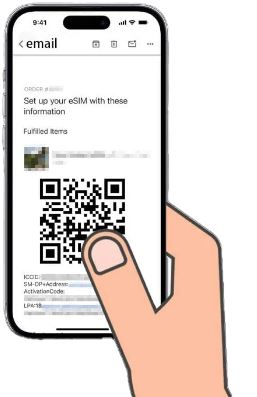
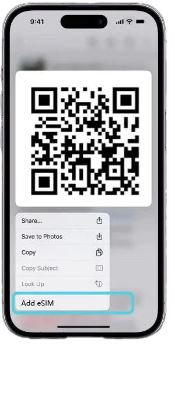
This method is applicable to iOS17.4 or above. Global eSIMS will send the eSIM installation and activation information to your registered email address. Long press the eSIM QR code in the email, and in the pop-up prompt, tap the "Add eSIM" option
Method 5 to Install the eSIM
Install eSIM from Quick Link (Apple/iOS/iPhone)
This method is applicable to iOS17.4 or above, click on the 'Quick Install Link' provided and follow the onscreen instructions.
Activate the eSIM
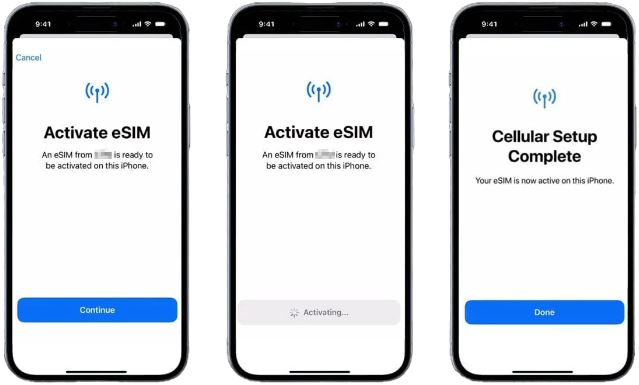
Once installed you will be asked to Activate your eSIM on the Activate eSIM page, just tap "Continue" to until the activation done.
Connecting and Using your eSIM
Typically, the newly installed eSIM is turned ON by default (If you do not plan to use it immediately, you can turn it OFF).
Once you arrive at your destination, turn the eSIM ON and ensure the following settings are made to ensure your eSIM connection.
Data Roaming
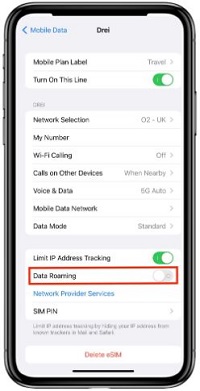
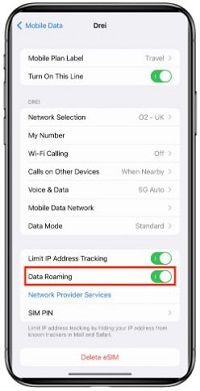
It is essential that DATA ROAMING is ON in order to use your eSIM. To enable DATA ROAMING:
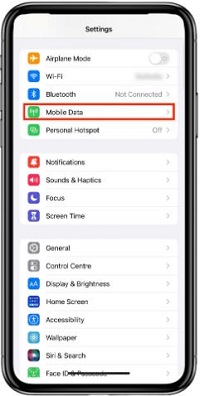
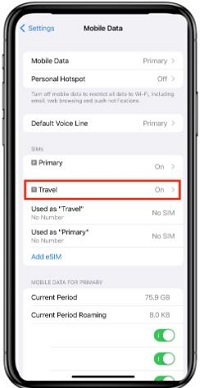
Open 'Settings' on your phone, tap 'Mobile Service/Mobile Data/Cellular', then tap on the eSIM you want to use. In this section, you can activate and deactivate roaming. Toggle data roaming from disabled as below, to enabled. Enabled data roaming will appear with a green check showing it is ON.
Mobile Data
On the Mobile Service screen, it is essential that your eSIM is selected within Mobile Data.
1. Open your iPhone Settings, then select the Mobile Service option.
2. Click the Mobile Data option, then select name of your eSIM (Travel / Secondary etc.)
Please give a moment for the device to connect to a network. You should then be able to use data roaming services.
Still Need Help?
After installing and activating your eSIM you should immediately have access to the internet, if for any reason after 10 minutes your internet access is not working, please reach out to us by Live Chat (fastest), Email or Phone.
